ALERT OPC Tunneler: configuration in ALERT 4.0
1. ALERT Tunneler configuration as a data server:
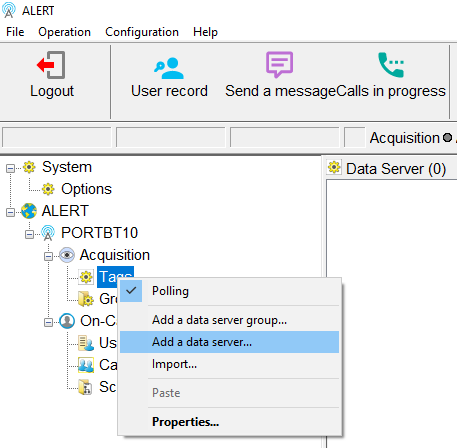
To establish communication with the "ALERT Tunneler" module, you must declare a new data server. Right-click on "Data Servers", and then click on "Add a Data Server...":
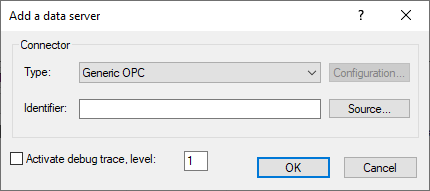
In the next window, configure the type to "Generic OPC", then click the "Source..." button:
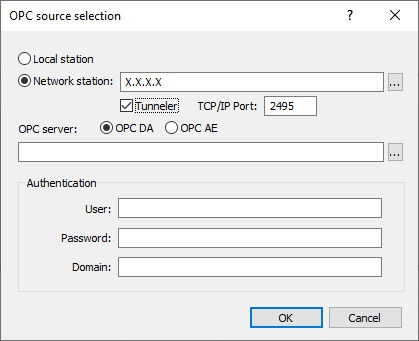
The "OPC Source Selection" window appears:
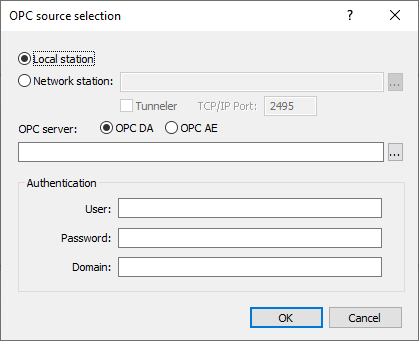
Check the "Network Station" box:
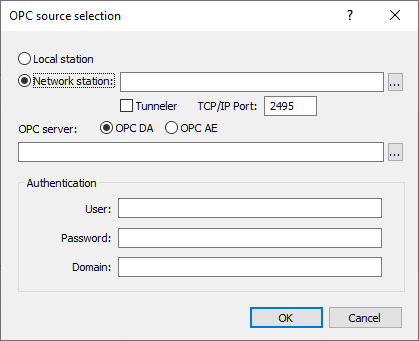
In the field to the right of the "Network Station" box, enter the IP address or name of your host PC with the "ALERT Tunneler" module.
Check the "Tunneler" box and modify the "TCP/IP Port" field if you are not using the default port:
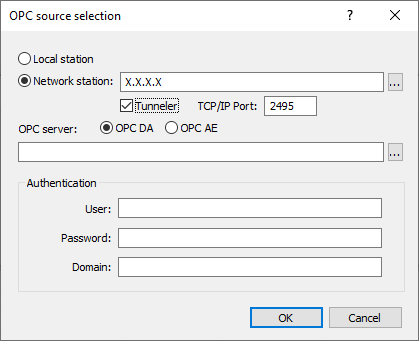
Select the OPC server type using the two boxes "OPC DA" or "OPC AE".
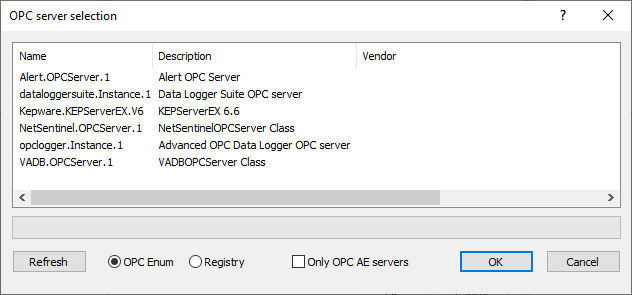
Click the "..." button to the right of the following field to display the list of remote OPC servers:
In this window, select the OPC server you wish to connect to.
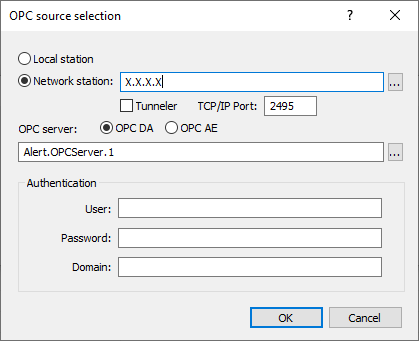
Then click "OK" to confirm:
Click "OK" in the next window:
The new data server then appears in the tree under the "Data Servers" section:
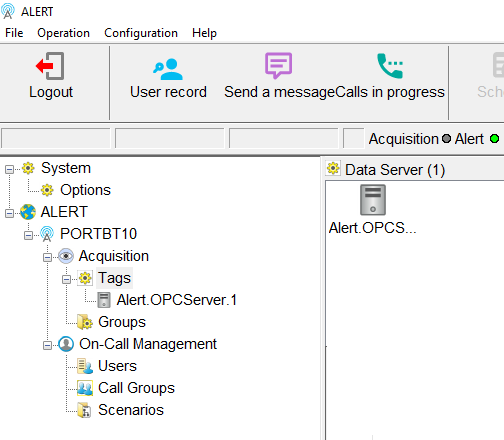
2. Verification of communication between ALERT and ALERT Tunneler:
On the "ALERT Tunneler" host (when running as an application), it is possible to know the status of the connection established by ALERT:
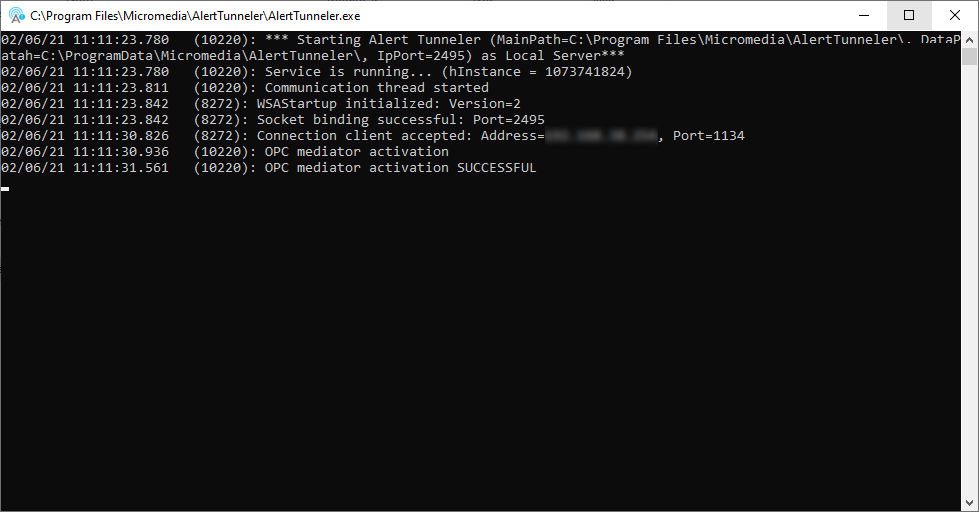
When the client connection (ALERT) is successful, the terminal should display:
- Connection client accepted: Address=X.X.X.X, Port=XXXX
The OPC mediator is then activated and its execution status is displayed:
| OPC mediator activation | OPC mediator activation |
| result of OPC mediator activation | OPC mediator activation SUCCESSFULL |
3. Add a data server from ALERT Tunneler:
Select the data server corresponding to the "ALERT Tunneler":
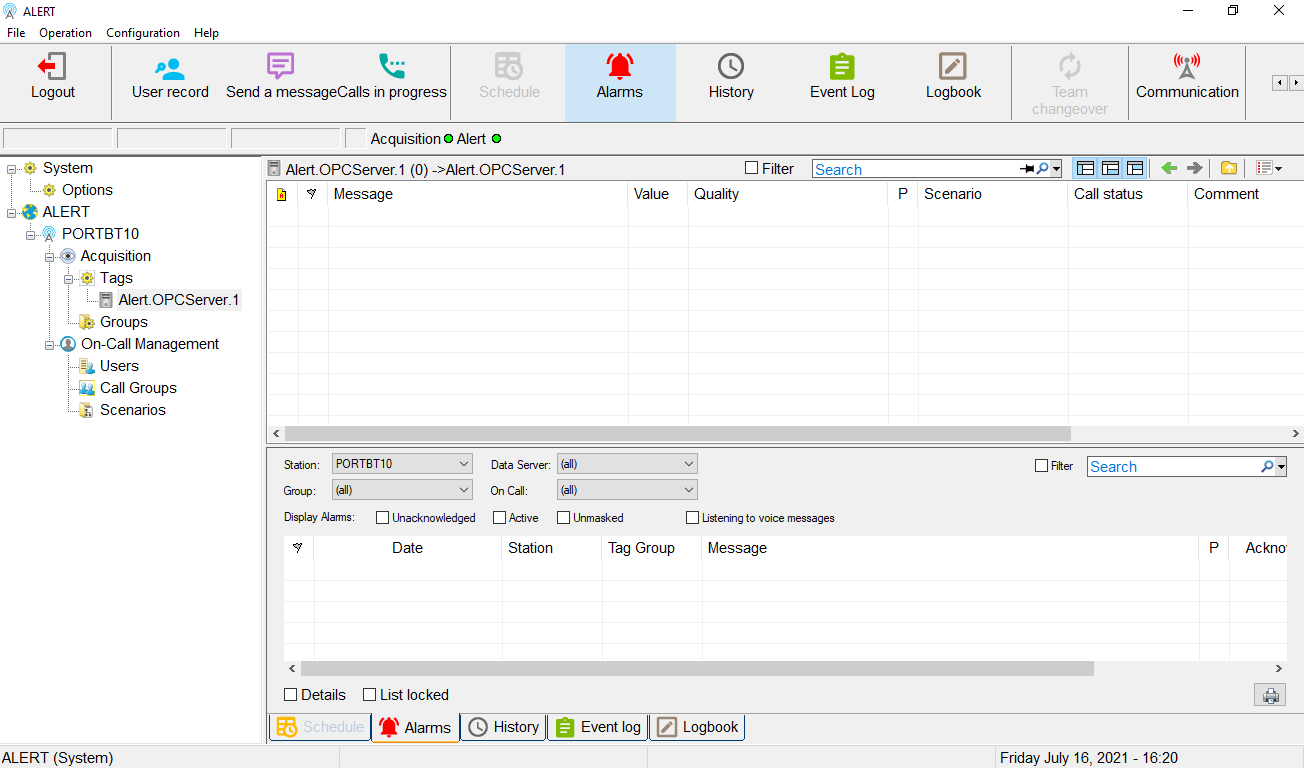
Right-click on the data server name, then click on "Add a tag...":
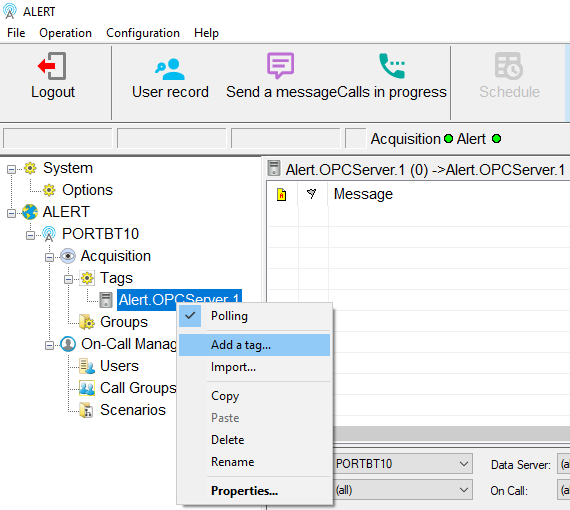
Click on the "..." button to the right of the "Data Path" field:
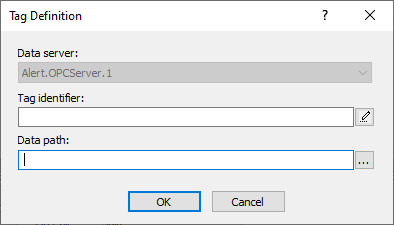
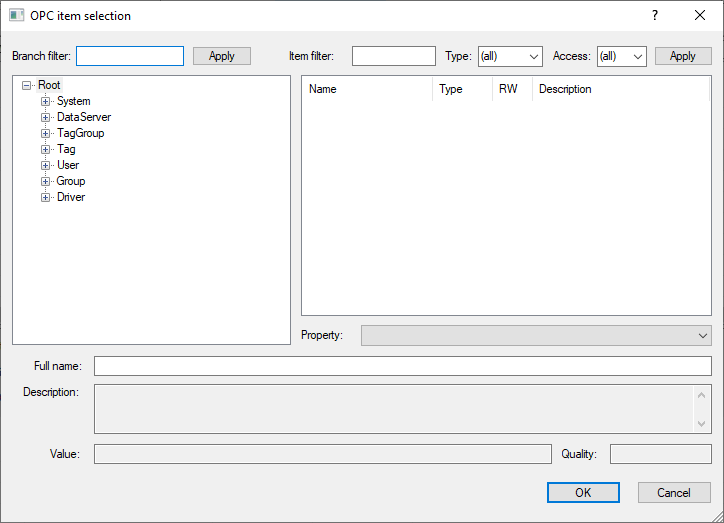
Navigate the tree on the left to display the variables associated with the group on the right side of the window:
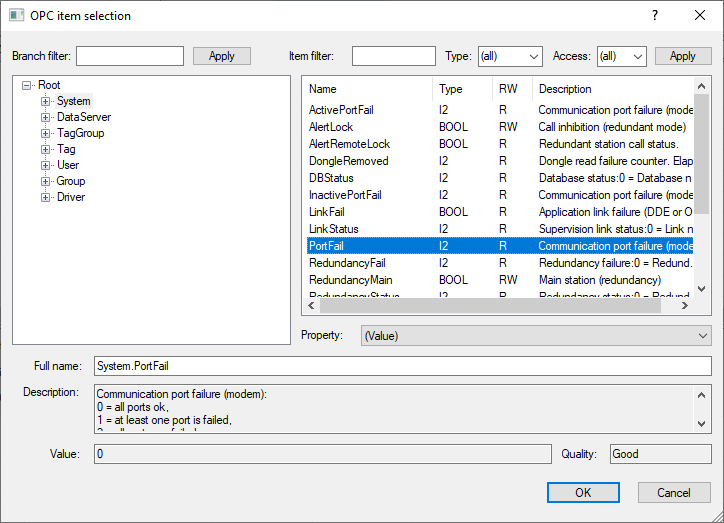
Select the desired variable, then click "OK":
Click "OK":
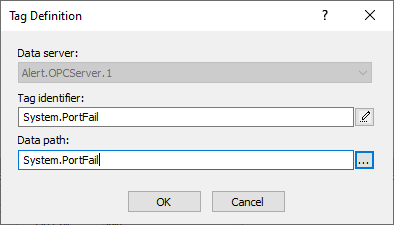
Define the variable parameters:
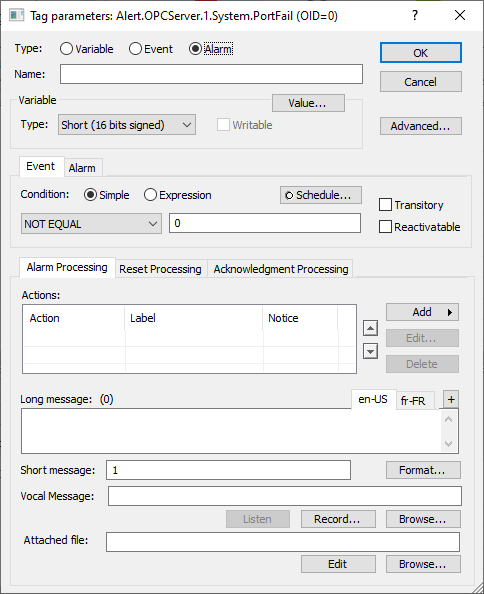
Click "OK" to create the variable:
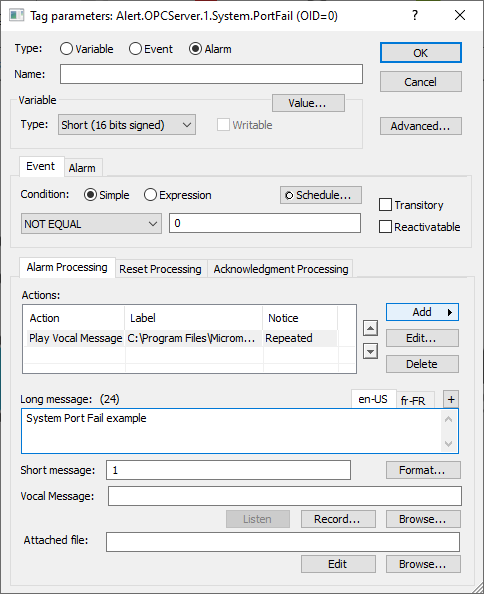
4. Checking for the addition of the variable:
When a variable is added to ALERT, the "ALERT Tunneler" module will display the attempted connection to the OPC server in the Logs (Terminal window).
| Connection attempt to the OPC server | Connecting to OPC DA server "OPC Server Name" |
| Successful connection to OPC server | Connected to OPC DA server "OPC Server Name" |